How to View and Analyze DJI Thermal Images on Mac
If you have DJI thermal images and a Mac, you've likely already run into some frustration: macOS can display the JPEG preview, but cannot read the radiometric temperature data behind it. To measure temperatures, adjust thermal parameters or properly analyze a thermal anomaly, you need software that can decode the original DJI radiometric file. Until recently, no such software existed on a Mac.
DJI’s own Thermal Analysis Tool only works on Windows, which leaves Mac users choosing between a separate Windows setup, a conversion workflow or software built for macOS.
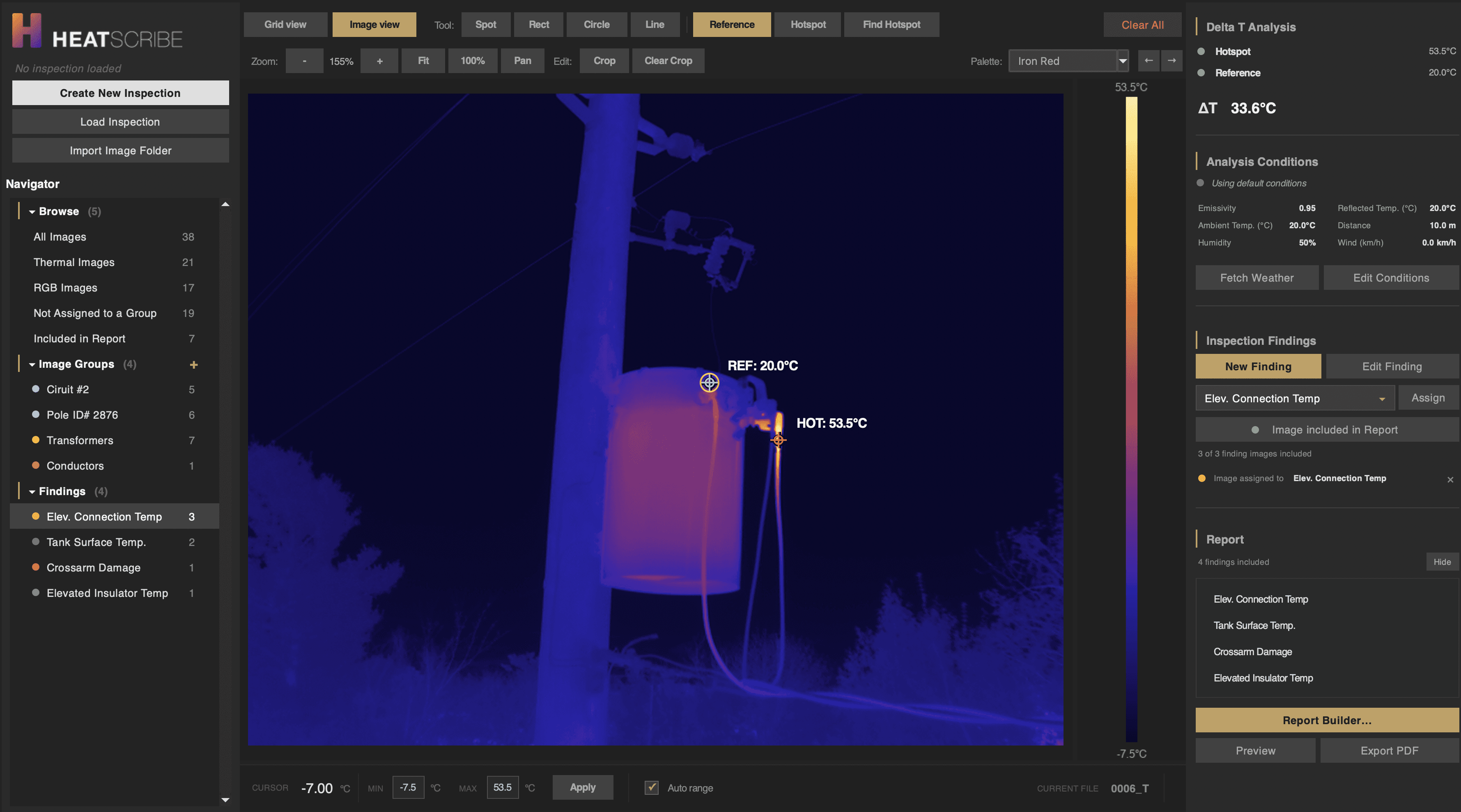
HeatScribe analyzes original DJI radiometric thermal still images directly on Apple Silicon Macs. No Windows computer, virtual machine required. You can try HeatScribe free for 14 days.
Why DJI Thermal Images Are Different
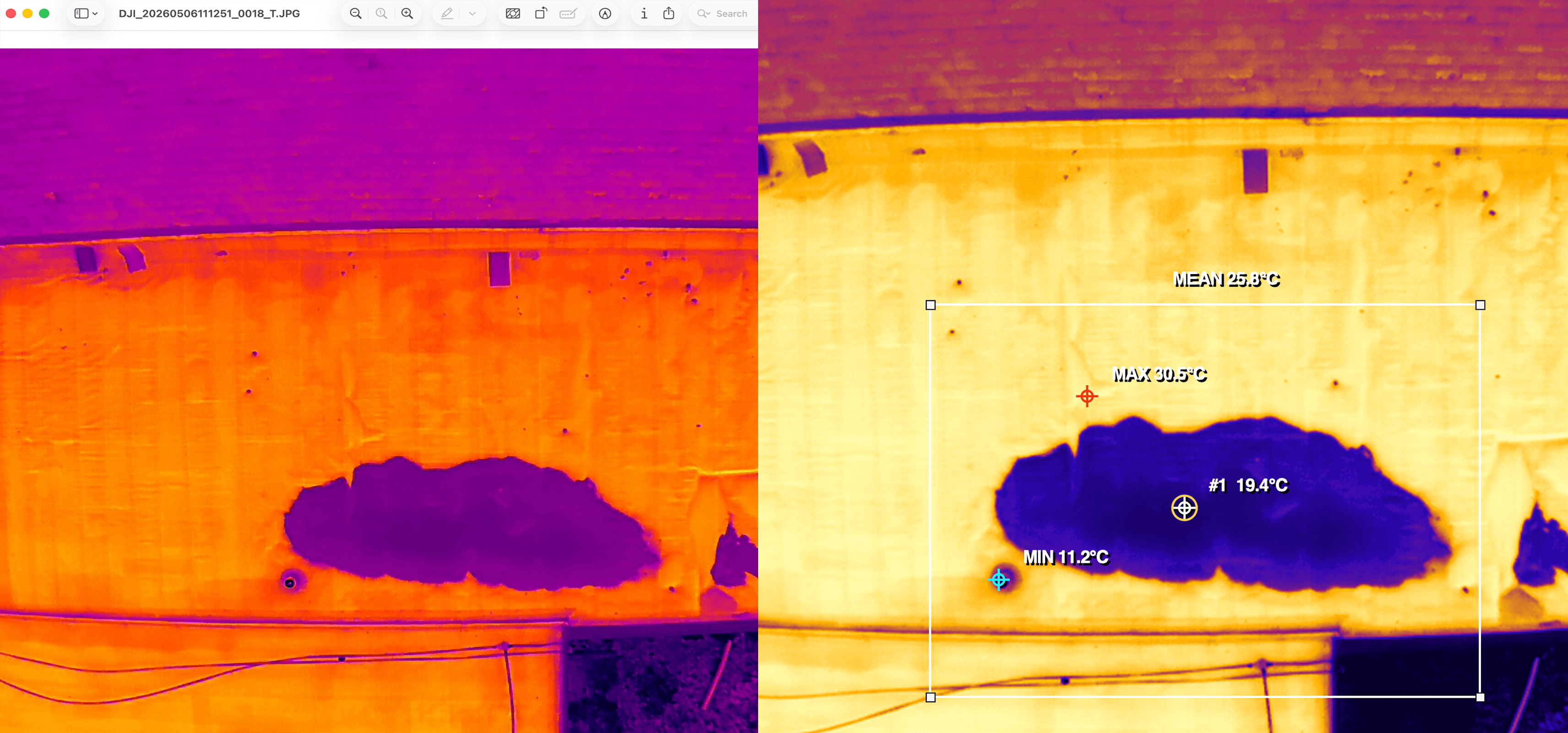
DJI thermal cameras capture radiometric JPEG files, often called R-JPEGs. These files look like normal JPEGs, and you may be able to open them in Preview, Photos or another standard image viewer and see a thermal-looking image.
But the important inspection data is not the preview. It is the radiometric temperature data embedded in the file.
When decoded, that data can be used to calculate per-pixel temperatures, place spot and area measurements, compare temperature differences, change color palettes and adjust thermal parameters such as emissivity and reflected temperature.
If you open a DJI R-JPEG in a standard viewer, you are typically seeing only the embedded preview. That may be enough to notice that something looks warmer or cooler than its surroundings, but it is not a proper thermal-analysis workflow and does not expose the underlying temperature data.
Is DJI Thermal Analysis Tool Available for Mac?
DJI does not currently offer a macOS version of DJI Thermal Analysis Tool 3. DJI publishes the current application for Windows only.
For Mac users, that creates a genuine software gap. Many of the tools designed for thermal analysis are Windows-only, designed for other camera ecosystems, or are limited to displaying the image preview only. Other solutions are dependent on workarounds that add complexity and expensive making them unrealistic for a repeatable inspection workflow. for example It's possible to maintain a separate Windows computer or experiment with running Windows in a virtual machine. That may be acceptable for occasional use, but it means maintaining another operating environment simply to analyze the images captured in the field.
A Note About Thermal Stills and Video
This article is about DJI radiometric thermal still images, particularly R-JPEG files.
DJI thermal drones can also record thermal video as MP4 files. Those videos are useful for visual review, but they do not contain the same radiometric measurement data as thermal still images. If your workflow depends on temperature measurements, Delta T analysis or report-grade findings, make sure you capture and retain the appropriate radiometric still images during the inspection.
What Are the Options for Mac users?
Use DJI’s Software on Windows
DJI Thermal Analysis Tool provides DJI’s own image-analysis environment, but the current application is only for Windows. On a Mac-based workflow, that normally means using another computer or maintaining Windows through virtualization.
Use Other Thermal Software
Many thermal-analysis applications are designed around a particular manufacturer’s camera ecosystem. They may be excellent for the hardware they support, but that does not automatically mean they can decode DJI radiometric data. Most manufacturers lock their software down to only work with the hardware that they sell.
If software claims to support thermal images, ask specifically whether it supports original DJI radiometric R-JPEG files. Opening the embedded preview is not the same as decoding and measuring the temperature data.
Convert the Files
Some workflows convert DJI R-JPEGs into radiometric TIFF files. This can be useful when mapping, GIS, photogrammetry or custom analytical software requires a temperature raster.
Conversion is not inherently necessary to analyze a DJI thermal image, however. It is an intermediate step used because the next application cannot read the original radiometric format directly. This adds considerable complexity and is generally not conducive with a fast, repeatable analysis and reporting workflow.
Use a Mac Application That Supports DJI Radiometric Data
HeatScribe provides a direct Mac workflow for DJI thermal inspection and reporting. It processes DJI radiometric still images natively on macOS.
For a broader discussion of software selection, see What to Look for in Thermal Inspection Software for Mac.
Viewing and Analyzing DJI Thermal Images in HeatScribe
HeatScribe is a macOS application built specifically for DJI thermal inspection and reporting. It works from the radiometric data rather than only displaying the visual preview.
Once your images are loaded, HeatScribe provides the tools needed to examine the radiometric data and document you findings.
Thermal Viewing and Palette Control
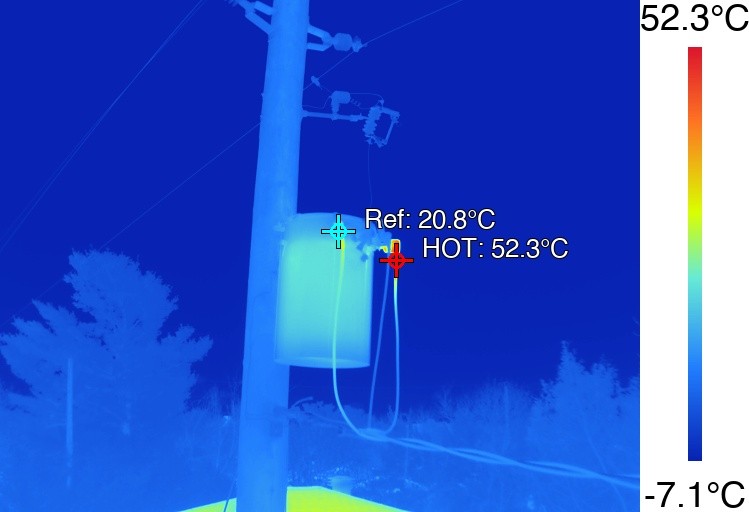
Switch between standard DJI color palettes such as iron red, rainbow, white hot and black hot, and adjust the displayed temperature range to make thermal patterns easier to interpret.


Temperature Measurements
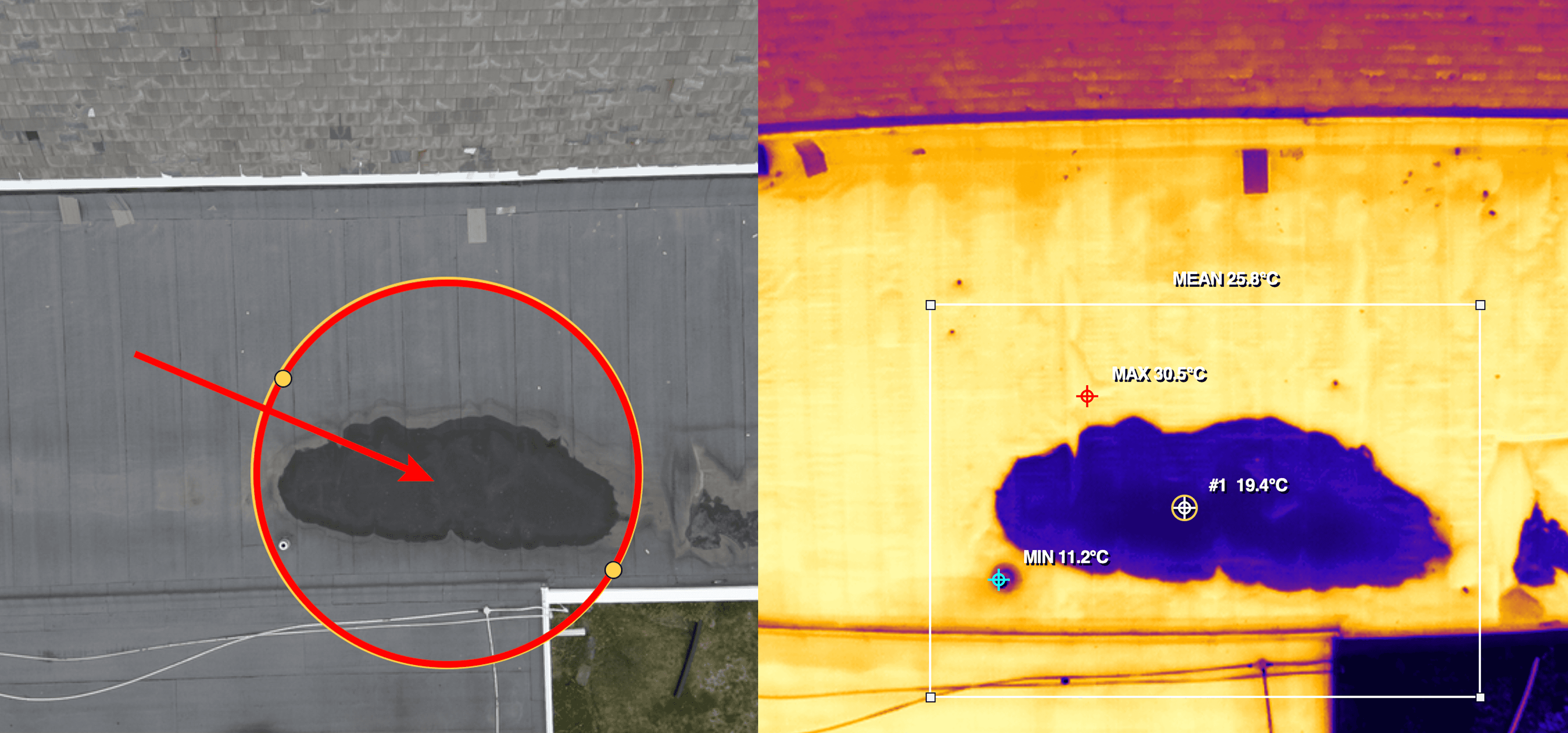
Place spot, line and area measurements on the image. Area measurements provide minimum, mean and maximum temperatures across a selected region. Reference and hot spot measurements can be used for Delta T analysis.
Thermal Parameter Adjustments
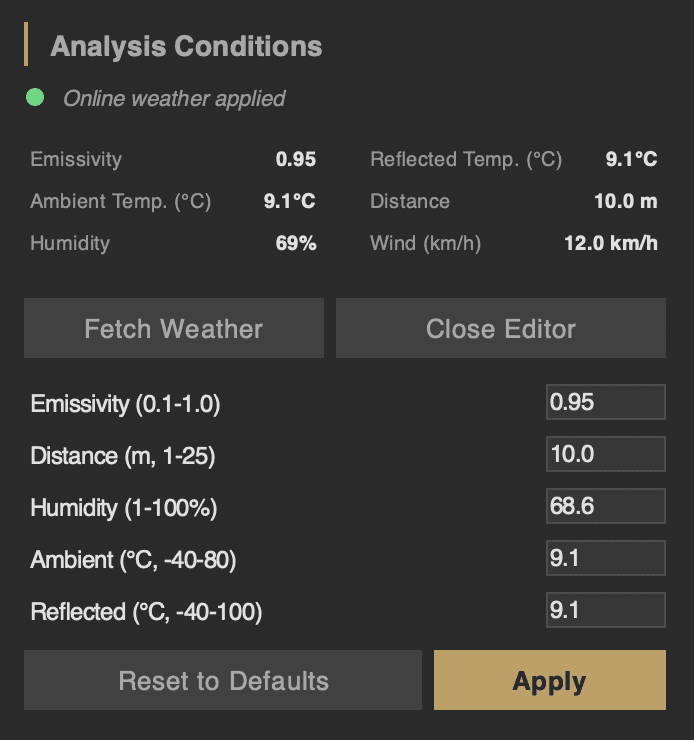
Adjust parameters such as emissivity, reflected temperature, distance and humidity. Because HeatScribe works with the radiometric data, measurement values can be recalculated when the analysis parameters change.
Include Visible-Light Images For Context
Pair a thermal image with its corresponding visible light (RGB) photograph. The thermogram shows the thermal pattern, while the visible image helps the client identify the affected asset, roof area, solar row, facade section or equipment location.
From Analysis to Report
Analysis is only part of a professional inspection. The findings also need to be communicated clearly enough for the client to understand and act on them.
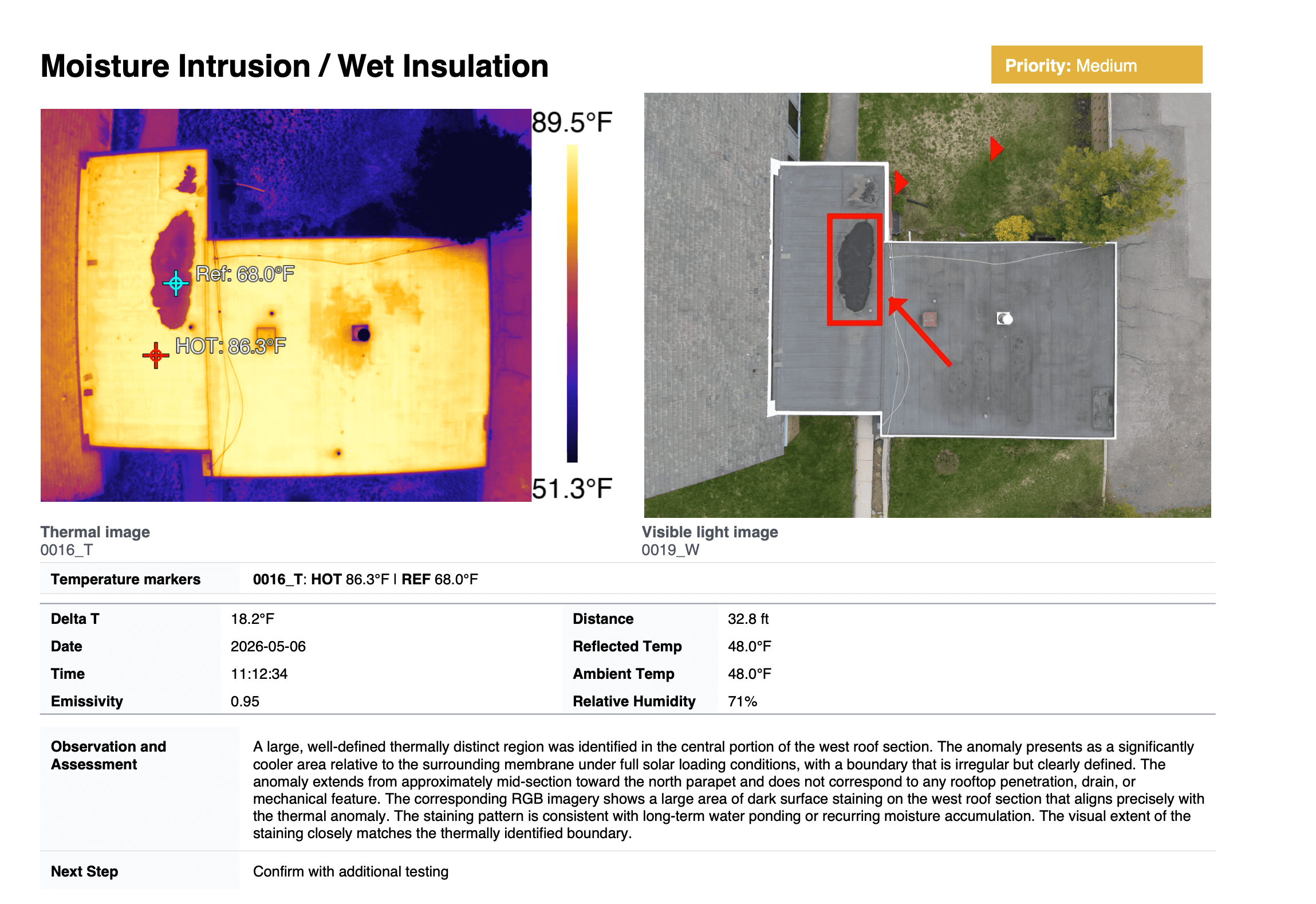
HeatScribe can carry the measurements and imagery into structured findings and generate a professional PDF inspection report. Reports can include thermal and visible images, measurements, Delta T results, priorities, inspector and client information, environmental conditions and equipment details.
This avoids copying screenshots and measurements into a separate document after the analysis is complete.
Related resources:
Which DJI Thermal Images Does HeatScribe Support?
HeatScribe supports original radiometric thermal still images from DJI thermal drones and cameras, including:
DJI Matrice 4TD; and
compatible Matrice aircraft, including the Matrice 200 Series V2, Matrice 300 RTK, Matrice 350 RTK and Matrice 400, when equipped with a Zenmuse XT S, H20T, H20N or H30T thermal camera.
The important requirement is the original radiometric thermal still image. A screenshot, exported preview, resaved JPEG or visible-light photograph does not contain the same radiometric measurement data.
System Requirements
HeatScribe requires an Apple Silicon Mac with an M1 processor or newer, running macOS 14 Sonoma or newer.
Image analysis, inspection editing and report generation happen locally on the Mac. An internet connection is not required for the core workflow after activation. Optional online features, such as weather retrieval or map imagery, require a connection when used.
Analyze DJI Thermal Images on Your Mac
If your current workflow involves moving files to a Windows computer, maintaining a virtual machine or converting every image before analysis, HeatScribe provides a direct alternative.
Work from the original DJI radiometric images, analyze the temperature data, organize the findings and produce the report in one Mac application.
Try HeatScribe free for 14 days. No subscription is required.
Sources
Learn how to open and analyze DJI radiometric R-JPEG images on an Apple Silicon Mac without Windows or TIFF conversion.